









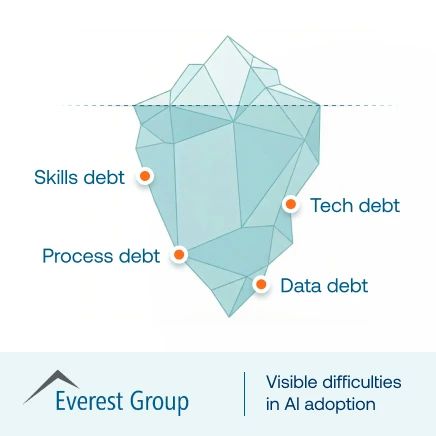



After a new software rollout or a major release, change teams often hear broad signals like “users hate the new process” or “training did not work.” But usability and support stabilization issues are rarely that general. In enterprise applications, friction usually shows up in specific workflows, steps, roles, regions, or exception paths where users stall, abandon the process, raise repeat tickets, or resort to workarounds.
Feedback often arrives late, is broad, and is disconnected from workflow evidence. By the time it reaches the change team or application owner, it has already become a support spike, productivity drag, or process adherence risk. A structured feedback loop helps teams move from user frustration to a clear view of what needs to be fixed.
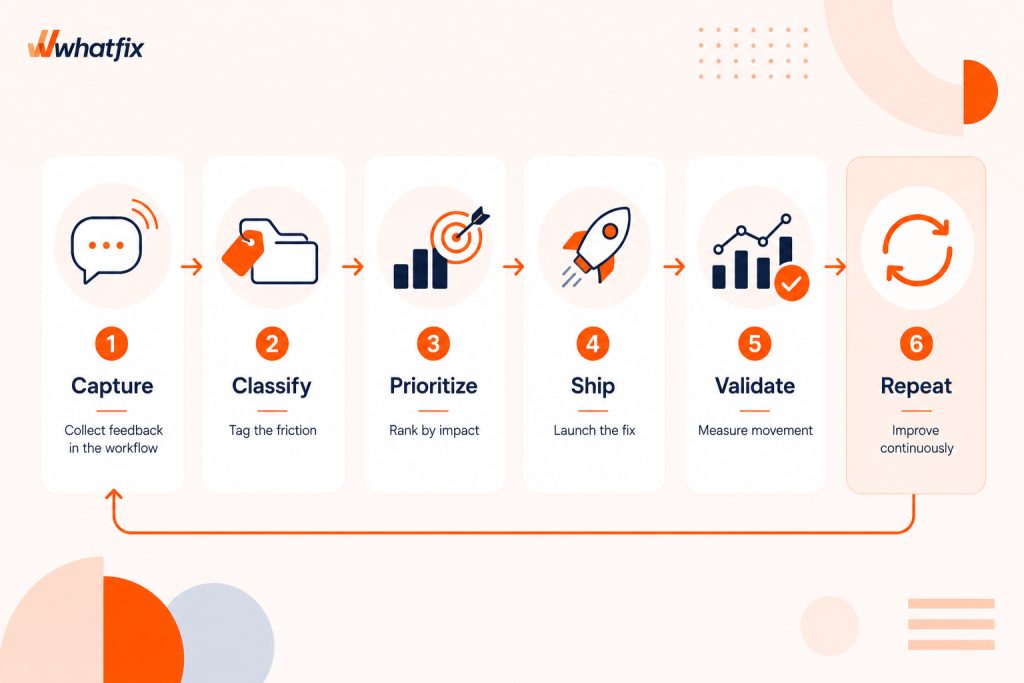
Embedding feedback loops during change projects enables enablement leads and application owners to stabilize digital adoption. By capturing feedback at the workflow moment, connecting it to behavior signals, prioritizing repeat friction, shipping targeted fixes, and validating movement within 14 days, teams can turn user feedback into measurable workflow improvement.
In this article, we’ll cover how to design a change feedback loop that captures the right signals, turns them into a governed friction backlog, and uses weekly iteration to reduce repeat issues on priority workflows.
What Is a Feedback Loop During Change?
A feedback loop during change is a structured system for capturing user input during a rollout or release, connecting that input to workflow evidence, and using it to decide what needs to be fixed, reinforced, or monitored. In enterprise software change management, feedback should be tied to a specific application, workflow, step, role, cohort, or support pattern.
This is different from broad post-launch feedback. A post-launch survey might tell you that users feel frustrated, confused, or unsupported. Embedded workflow feedback tells you where that frustration is happening and why.
For example, instead of learning that users are struggling with the new procurement process, teams can see that AP managers are abandoning invoice exception handling after a new validation rule appears, while tickets for that same step are increasing.
The purpose of a change feedback loop is to create a repeatable path from signal to action. Teams capture the issue, validate it with behavioral data, prioritize it by impact, ship the right intervention, and measure whether repeat friction declines. That is what turns feedback from a listening exercise into a stabilization mechanism.
How to Embed Feedback Loops During Organizational Change
Feedback loops work best when they are built into the stabilization model for a rollout. The goal is to help teams see where users are struggling, why friction is happening, what needs to change, and whether the fix improved workflow execution.
Start with behavior signals
Behavior signals show where execution is breaking. These are the production signals that help application owners locate friction by workflow, step, role, or cohort.
Track signals such as
- workflow drop-offs
- repeated retries
- errors or failed validations
- time-to-complete increases
- tickets per active user
- exception rework
- repeated Self Help searches
Add experience signals
Experience signals explain why users are struggling. They give change enablement teams the context behind the behavior data.
Capture feedback on
- what blocked users
- what felt unclear
- what changed from the old process
- what support users needed to continue
Together, behavior and experience signals help teams separate surface-level frustration from the root cause, whether that is unclear guidance, process confusion, access gaps, user readiness issues, or a system blocker.
Set action rules for every feedback item
A feedback loop only works if every signal has a path to action. Before launch, define the rules for reviewing, assigning, and validating feedback.
Each feedback item must
- attach to a specific workflow and step
- link to a role, cohort, or region when relevant
- receive a decision such as ship, escalate, monitor, or ignore
- have an owner for the next action
- include a validation metric for every shipped fix
Where to Capture Feedback During a Rollout
Feedback should come from multiple points in the rollout experience because each channel reveals a different kind of friction. Surveys explain what users felt, support tickets show what users could not resolve, and workflow analytics show where execution broke.
Use a channel map to decide which signals to capture, what each signal tells you, and who should act on it.
| Feedback channel | What it helps identify | Example signal | Primary owner |
| In-app micro-surveys | Why users stalled at a specific workflow moment | Users say a new approval step is unclear | Change enablement lead |
| In-app Self Help interactions | What users try to resolve before raising a ticket | Repeated searches for a missing field or policy rule | App support or knowledge owner |
| ITSM tickets | Issues severe enough to escalate | Access gaps, failed validations, unclear handoffs | Service desk or application owner |
| Workflow analytics | Where users drop off, retry, slow down, or abandon | Drop-off spike at a changed supplier validation step | Enterprise application owner |
| Training analytics or readiness assessments | Which cohorts were not ready before go-live | Users fail a simulation for a high-risk workflow | Enablement or L&D owner |
| Post-release comms responses | Confusion about what changed or why | Users ask whether the old process still applies | Change communications owner |
Place feedback triggers only where the signal will help teams make a decision. Prioritize changed steps, failure points, abandonment points, repeated retry points, top support drivers, and post-completion moments for high-risk workflows. This keeps feedback close to the moment of friction without overwhelming users with unnecessary surveys.
How to Build a Continuous Feedback Loop
Raw feedback needs enough structure to become actionable. Keep the framework simple, so that enablement and support teams can triage issues quickly, rather than creating another admin-heavy process.
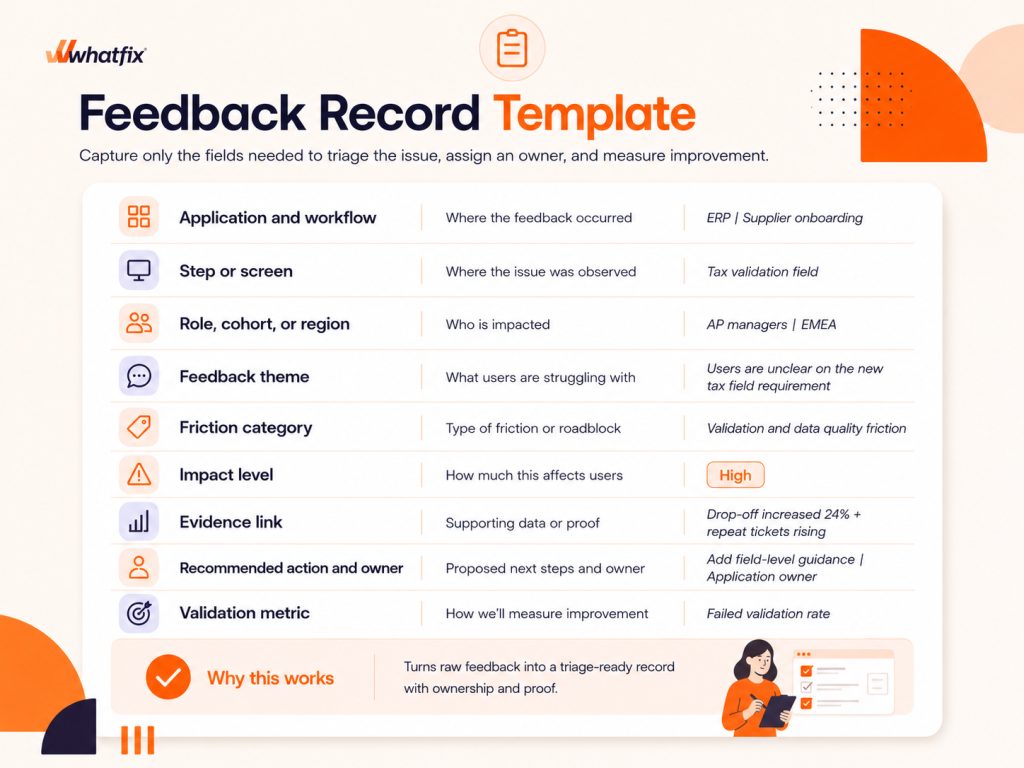
For each friction item, capture only the fields that help the team decide what to fix, who should own it, and how success will be measured.
- Application and workflow: Where the issue happened.
- Step or screen: The exact point where users stalled, abandoned, retried, or raised a ticket.
- Role, cohort, or region: Who is affected and whether the issue is isolated or spreading.
- Feedback theme: A short summary of what users reported.
- Friction category: The type of issue creating friction.
- Impact level: Severity, frequency, and business risk of the issue.
- Evidence link: The related drop-off, failed search, ticket category, exception rate, or rework signal.
- Recommended action and owner: What should happen next and who is responsible.
- Validation metric: The metric that will prove whether the fix worked.
Friction taxonomy
Raw feedback often sounds similar even when the required fix is different. A user who says they are stuck may need clearer guidance, a field validation prompt, a policy clarification, an access fix, or escalation to the application owner.
A friction taxonomy helps change enablement leads and application owners route issues faster, avoid defaulting every problem to training, and choose the intervention most likely to reduce repeat friction.
- Workflow friction: Users are unclear on the next step, exception path, or changed process.
- Validation and data quality friction: Users fail required fields, formats, validations, or data checks.
- Policy or approval friction: Users are confused by a new gate, approval rule, responsibility, or control.
- Access and permissions friction: Users lack access to a role, screen, transaction, or field.
- Support dependency friction: Users depend on tickets, SMEs, or chat channels for repeat issues.
- Environment friction: Friction is tied to desktop, VDI, browser, device, latency, or localization constraints.
- Readiness friction: Users did not practice the workflow enough or struggled in readiness assessments.
Best Practices for Change Feedback Management
Surveys must only be used when the response can help teams make a triage decision. During rollout stabilization, the best survey is short, contextual, and tied to a workflow signal.
When to trigger a microsurvey
Trigger micro-surveys when user behavior suggests friction, such as
- after a failed attempt
- after abandonment
- after repeated retries
- after a failed Self Help search
- after completion takes longer than expected
- after first completion of a changed workflow
For broader release feedback, send a short pulse 3 to 5 days after impacted users first encounter the changed workflow. Keep it tied to the release, workflow, or cohort rather than asking for general feedback on the rollout.
Examples of survey question by intent
Use questions that help the team classify the issue and decide what to fix.
To understand what blocked completion
- What stopped you from completing this step?
- Which part of this workflow was hardest to complete?
- Were you able to finish this task without contacting support?
To identify what was unclear
- What information did you need at this step?
- Which instruction, field, or rule was unclear?
- What would have helped you complete this step faster?
To compare the new path with the old process
- What felt different from the previous process?
- Did the new step match what you expected to do?
- Where did the new process create extra effort?
To decide the next intervention
- What would help you complete this independently next time?
- Would a walkthrough, field tip, help article, or refresher practice help most?
- Do you need follow-up from support or a process owner?
How to design survey UX
Structure each survey so responses are easy to classify, route, and act on while keeping effort low for users.
- Use multiple choice to classify the friction type.
- Add a simple severity rating to understand impact.
- Include one short open-text field for context.
- Offer follow-up only for high-risk or unresolved issues.
- Cap surveys by user and workflow.
- Use release-specific survey windows.
- Retire surveys once the issue stabilizes.
- Route high-severity responses into the friction backlog.
How to Measure User Sentiment That Holds Up to Executive Review
Sentiment should strengthen the feedback loop by adding context to workflow evidence. A negative survey response becomes actionable when it is tied to the workflow, step, cohort, friction category, and behavior signal behind the issue.
Tag sentiment to supporting evidence such as ticket spikes, funnel drop-offs, failed Self Help searches, or exception rework. This helps change enablement leads and app owners separate isolated frustration from repeat friction that needs action.
Prioritize review when sentiment points to a concentrated workflow issue, such as:
- negative sentiment around one step
- the same theme repeating across cohorts
- sentiment aligning with ticket spikes, funnel drop-offs, or failed Self Help searches
- sentiment appearing on a high-risk or compliance-sensitive workflow
How to Close the Feedback Loop
Feedback closes the loop when it leads to a shipped intervention and measurable improvement. Once friction is classified, the team should decide the right fix, assign an owner, and define the signal that proves whether the issue is improving.
Map interventions to root causes
| Root cause | Intervention | Validation signal |
| Workflow friction | Step-level guidance, flow update, exception-path support | Drop-off reduction at the failing step |
| Validation issue | Field-level reinforcement, data-quality prompt | Fewer failed validations |
| Policy or approval confusion | In-workflow process reinforcement | Lower rework or exception volume |
| Access issue | Role-aware guidance, escalation path, entitlement fix | Fewer access-related tickets |
| Support dependency | Self Help content, guided resolution | Higher self-service resolution |
| Readiness gap | Simulation practice, refresher task list | Higher workflow completion and faster time-to-proficiency |
Run a weekly change feedback review session
Use the weekly review to turn feedback into decisions. Keep the agenda focused on the highest-impact friction items.
- Review top workflow drop-offs, repeat tickets, and failed searches.
- Compare feedback themes against behavior signals.
- Prioritize by severity, frequency, and cohort impact.
- Decide the next action, such as ship, escalate, monitor, or close with rationale.
- Assign an owner and release window.
- Define the 14-day validation metric.
Validate movement in the first 14 days
In the first week, look for early signs that the intervention is reducing friction.
- Drop-offs decline at the failing step.
- Repeat ticket drivers start declining.
- Self Help resolution improves.
- Friction theme volume decreases.
By the second week, validate whether the workflow is stabilizing.
- Workflow completion rate improves.
- Tickets per active user trend toward baseline.
- Cohort variance narrows.
- Repeat issue rate by workflow step declines.
How Whatfix Powers Closed-Loop Change Feedback
Whatfix helps change enablement leads and application owners turn feedback loops into a repeatable system for stabilizing enterprise software change. Teams can capture feedback inside the application, connect it to workflow behavior, ship targeted guidance or support, and measure whether repeat friction declines after each intervention.
Capture Feedback at the Workflow Moment
With Whatfix Surveys, teams can collect contextual feedback while users are in or near the workflow. Teams can trigger micro-surveys at moments that matter most, such as changed workflow steps, failed attempts, abandonment points, repeated help searches, and post-completion moments for high-risk workflows.
This gives teams precise feedback on what blocked users, what felt unclear, and what support they needed to continue.
Connect Feedback to Workflow Evidence
Whatfix Product Analytics helps teams validate feedback against real behavior. Application owners can analyze funnels, paths, cohorts, drop-offs, and user journeys to see where friction is concentrated.
Teams can segment insights by role, region, cohort, workflow, release group, or user behavior. This helps teams prioritize the issues affecting workflow completion, support volume, time-to-proficiency, and process adherence.
Ship and Measure Fixes Inside the Workflow
Once teams identify the root cause, Whatfix DAP helps them deliver the fix directly inside the application. Teams can guide users at the failing step, clarify changed processes, reinforce required actions, and reduce dependency on tickets or static documentation.
Common interventions include
- Smart Tips for field-level clarification
- Flows for guided task completion
- Task Lists for role-based rollout steps
- Pop-Ups and Launches for release communication
- Self Help for repeat questions and support deflection
Because feedback, in-app guidance, support, and analytics work together, teams can measure whether the intervention improves self-service resolution, reduces repeat tickets, increases workflow completion, and lowers friction on priority steps.
Use AI to Accelerate the Loop Safely
Whatfix AI can help teams move faster by summarizing feedback themes, surfacing friction patterns, and accelerating content creation for guidance and support. This helps change teams shorten the cycle between feedback review and shipped intervention.
Governance stays with the team. Change enablement leads and app owners define thresholds, approve interventions, make risk decisions, and decide which metrics prove success. This keeps the feedback loop fast, controlled, and aligned to business outcomes.
If your team is managing a complex rollout, migration, or frequent release cycle, Whatfix helps you move from scattered user feedback to a closed-loop adoption system. You can capture feedback in the flow of work, identify where users struggle, deliver targeted guidance or support, and prove whether workflow friction is declining. Request a Whatfix demo to see how your team can stabilize change faster across mission-critical applications.
Download the Change Feedback Loop Kit
Use this ready-to-use workbook to turn rollout feedback into a structured friction backlog, prioritize fixes, and validate whether repeat issues decline within 14 days. The kit includes a survey question bank, friction triage log, weekly review template, and 14-day validation tracker for change enablement leads and application owners managing post-go-live stabilization.